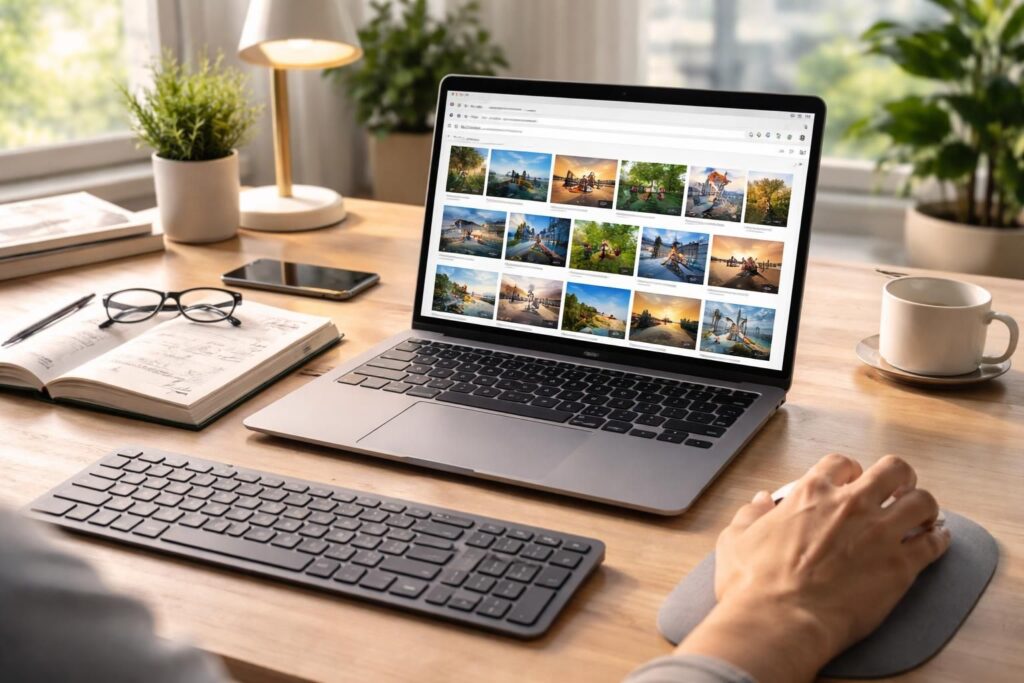
In a world where images dominate, knowing how to effectively search for a photo on Google has become an essential skill. Whether for professional projects, to enhance an article, or simply to share with friends, optimizing image searches is a real asset. In 2026, with the advent of advanced technologies and tools like Google Lens, image search methods have undergone significant evolution. This article presents concrete and practical tips to refine your searches, find suitable visuals, and respect usage rights. Techniques include using search filters, specifying image size, and applying advanced search operators. In other words, whether you are a design professional or an amateur, these tips will help you become an expert in image search on Google.
Tips for Optimizing Your Image Searches on Google
The first step to mastering image search on Google is to understand how search tools work. Several options and filters can facilitate this search. Before diving into technical details, it’s important to clearly define what you are looking for. This can include the image size, type of license, and even the dominant color.
Smart Use of Search Filters
Google’s search filters are an excellent starting point to refine your results. To access them, start by performing a standard image search. Then, click on “Tools” located under the search bar. From there, several options appear: size, color, type, and usage rights. For professional projects, it is crucial to respect usage licenses, thus avoiding legal issues.
Here’s how to use these filters:
- Size: Choose between “Large,” “Medium,” “Small,” or specify an exact size in pixels to get only the images that meet your needs.
- Color: You can select a dominant color to refine your search.
- Type: You can target photos, cliparts, or drawings, for example.
- Usage Rights: Filtering by different types of rights will let you know if the image can be used commercially or not.
Image Search: How Does It Work?
Image search, also known as reverse search, is an underutilized tool offered by Google. It is an effective method for finding the origin of an image or identifying objects within it. This technique is particularly useful for verifying the source of a photo or for finding products similar to those presented in an image.
Performing a Reverse Search on Google
To use reverse search on Google:
- Go to Google Images.
- Click on the camera icon to upload an image or paste the URL of an image.
- After performing the search, Google will display similar results, as well as web pages where this image appears.
This method is not limited to images stored on your computer. For example, to search for an image on the internet, right-click on the chosen image and select the option “Search an image with Google Lens” to open the reverse search directly.
Specifying Desired Image Sizes
For specific projects, such as graphic design or website creation, it may be necessary to find images of a precise size. Google offers a smart filter to search for images of exact dimensions.
Using the imagesize Operator
By using the syntax “imagesize:width x height” in the search bar, you can obtain only images that display the desired dimensions. For example, for an image of 1920 x 1080 pixels, enter: imagesize:1920×1080.
This can reduce the time spent browsing unsuitable images and facilitates the integration of visuals into your creations. Additionally, combining size search with other filters, such as those regarding usage rights, ensures that the images found will not cause copyright issues.
Advanced Techniques for Image Searches
Beyond filters and reverse search, several advanced techniques can improve the efficiency of your image search. These methods include using specific search operators and mastering resolution parameters.
Search Operators and Their Relevance
Using advanced search operators is an excellent way to enhance your searches. For example:
- OR: This operator allows you to combine multiple search terms. For example: plant OR flower.
- NOT: Exclude terms using this operator. For example: rose NOT thorn finds images of roses without thorns.
- site: Search within a specific domain. For example: site:unsplash.com landscape returns only landscape images found on Unsplash.
By combining these operators with size or usage rights filters, it is possible to achieve more relevant results.
Verification and Usage Rights of Images
When searching for images, overlooking usage rights is a common mistake. In 2026, it is crucial to master the rules regarding copyright to avoid legal issues when using images found online.
How to Ensure Images Are Usable
Here are some tips for navigating the world of usage rights effectively:
- Use the “usage rights” filter on Google Images to determine if an image can be used freely.
- Inspect the source of the image to ensure it does not violate copyright.
- Consult image banks such as Unsplash or Pixabay for royalty-free images.
Reverse search can also help trace the origin of an image, providing information about its licenses.
Combining Formats and Aspect Ratios
Image search can also be influenced by format and aspect ratio. Indeed, different file types are better suited for various uses. For example, the JPEG format is ideal for photos, while PNG images are often preferred for logos due to their transparency.
Choosing the Right Format to Optimize Integration
It is important to choose the appropriate format based on the intended use. The main formats include:
| Format | Advantages | Recommended Use |
|---|---|---|
| JPEG | Good compression | Standard photographs |
| PNG | Transparency and sharpness | Logos and illustrations |
| GIF | Simple animation | Micro animations |
Using the right format avoids inappropriate quality loss during upload or integration on a website.
Avoiding Unnecessary Edits Through Prerequisites
Finally, good management of prerequisites is key to effective searching. This includes not only selecting the right dimensions and formats but also saving templates of frequent queries. By doing so, it becomes possible to save valuable time during future searches.
Practical Tips for Effective Searching
Here are some recommendations to streamline your image searches:
- Save templates of queries you use regularly.
- Opt for native images close to the final required dimensions to reduce edits.
- Check the image ratio before making a final download to avoid cropping.
This careful preparation automates the process and improves the quality of images integrated into your projects.