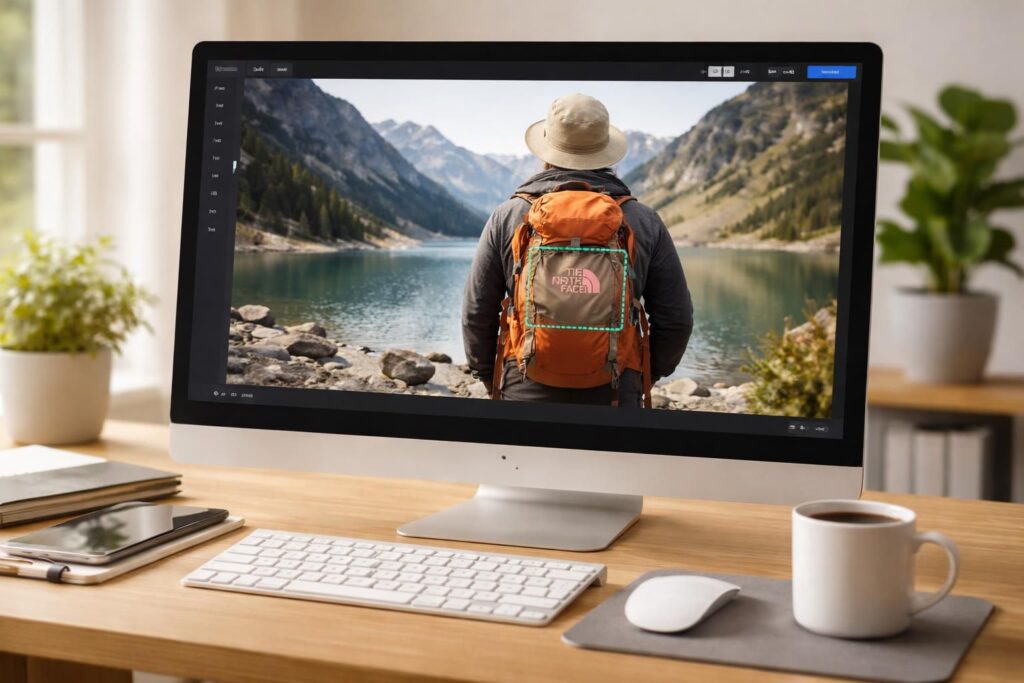
Editing an image to remove an unwanted element, such as a logo or a watermark, is no longer a privilege reserved for professional photo retouchers. Thanks to recent advancements in artificial intelligence, online tools like remover.zmo have made photo editing accessible to everyone. Whether it’s to enhance a vacation photo or prepare a visual for social media, these tools allow for modifications in the blink of an eye. Remover.zmo stands out particularly for its ability to process images without requiring installation, enabling smooth use from any device with an internet connection.
What is Remover.zmo and how does it work?
Remover.zmo is an online tool based on an artificial intelligence technology called inpainting. This process allows for the removal of unwanted elements from an image by analyzing the surrounding content, ensuring a natural and harmonious result. Unlike more traditional editing software, which often requires advanced skills, remover.zmo offers an intuitive interface suitable for both novices and experienced users.
The operation of remover.zmo relies on several key steps. When the user selects an object or logo to erase, the AI identifies the surrounding areas and generates a new rendering by intelligently filling in the removed area. This ability to understand the visual context of an image is what distinguishes this tool from its competitors. The results are often very convincing, with no visible artifacts, which is essential for maintaining visual integrity.
Why use Remover.zmo?
The reasons for using remover.zmo are varied. Whether for minor touch-ups or more significant modifications, this tool offers several advantages:
- Accessibility: Works without installation, on any device.
- Speed: Modifications are generally made in a few seconds.
- Quality results: Ability to generate realistic renderings.
- Ease of use: Intuitive interface that requires no prior training.
- Flexible payment options: Freemium model suitable for different types of users.
How to remove a logo with Remover.zmo?
Using remover.zmo is within everyone’s reach, even for those with no photo editing experience. Here is a step-by-step guide to removing a logo from an image:
Step 1: Access the tool
To get started, visit the official website of remover.zmo at the following address: remover.zmo.ai. The interface is simple and welcoming, making navigation easy.
Step 2: Import the image
Once on the homepage, the user can import the image to be edited by clicking the “Upload Image” button or by dragging the image directly into the interface. Remover.zmo supports common formats such as JPEG and PNG.
Step 3: Select the element to remove
The next step is to select the unwanted element, such as a logo. A selection tool works on the principle of a brush: by moving the mouse (or swiping on a touchscreen), the user can adjust the brush size for a more precise selection.
Step 4: Initiate the removal
Once the selection is complete, simply click the “Remove” button. The artificial intelligence then gets to work analyzing the image and performing the removal. This processing is generally very quick, although it may vary depending on the complexity of the image.
Step 5: Download the edited image
After the rendering has been generated, the user can view the result. If it is satisfactory, just download the image. In the free version, some limitations may apply, such as reduced resolution or the appearance of a slight watermark on the image.
Common mistakes to avoid when using Remover.zmo
To achieve optimal results with remover.zmo, certain common mistakes should be avoided. Here is a list of pitfalls to steer clear of:
- Poor selection: Targeting too many adjacent areas can distort the rendering.
- Ignoring details: Taking the time to refine the selection greatly improves the result.
- Not examining the background: Analyzing surrounding textures and patterns can prevent artifacts.
- Forgetting the preview: Checking the rendering before downloading to ensure its quality is crucial.
- Neglecting the pricing model: Understanding the differences between the free version and the Pro version can make a difference in the quality of results.
Beware of the limitations of the free version
It is worth noting that the free version of remover.zmo has limitations, including a restricted number of modifications per day and a maximum resolution. For more intensive use, upgrading to the Pro version may be beneficial.
Costs and subscription options for Remover.zmo
Remover.zmo operates on a freemium model, offering a free version as well as a paid Pro version. The free version allows access to basic functions but with certain restrictions in terms of the number of modifications and quality.
Pro subscription options
For those who require advanced features, the Pro version is offered at an affordable rate:
| Subscription Type | Cost | Features |
|---|---|---|
| Monthly | €4.99 | Unlimited access without watermark, HD export up to 4K |
| Annual | €49.99 | Monthly subscription benefits with two months free |
| Pay-as-you-go credits | €4.99 for 5 credits | Ideal for occasional use |
Practical applications of Remover.zmo
The uses of remover.zmo are numerous and varied. This tool is particularly suitable for users in various fields, ranging from personal photography to online sales. Here are some examples of practical applications:
Product photos for e-commerce
In the e-commerce sector, presenting products in an appealing setting is essential. Removing unwanted logos, labels, or shadows helps achieve a more professional image. This not only captures customers’ attention but also enhances brand credibility.
Personal photo editing
Many users turn to remover.zmo to correct vacation or family photos. The ability to remove people or objects that compromise the composition of an image significantly improves aesthetic quality.
Social media
On social media platforms, competition is fierce. Industry leaders often use editing tools to stand out. With remover.zmo, it is possible to edit photos before sharing them, ensuring they meet the audience’s expectations.
Performance and user reviews of Remover.zmo
User feedback on remover.zmo is generally positive. Many testimonials highlight the ease of use of the tool and the quality of the results. The automatic erasing features are often praised for their realism and effectiveness.
According to various studies and surveys, about 87% of users report being satisfied with the speed of the service, and 83% say they would recommend the tool to others. These figures reflect the growing enthusiasm for accessible and efficient online editing tools.
The importance of online reviews
User reviews play a central role in the popularity of remover.zmo. Forums and review platforms allow for sharing experiences, contributing to the improvement of the service. Developers take this feedback into account to optimize the tool’s features.
Conclusion on the effectiveness and accessibility of Remover.zmo
In summary, remover.zmo stands out as one of the most promising photo editing tools due to its accessibility and ease of use. Whether for removing a logo, a watermark, or any other unwanted element, this online tool is capable of meeting the expectations of a wide range of users, from individuals to professionals. The rise of artificial intelligence in this field suggests a promising future for automated photo editing.